How to Set Up an Ergonomic Home Office (Complete Guide)
Last updated: February 17, 2026
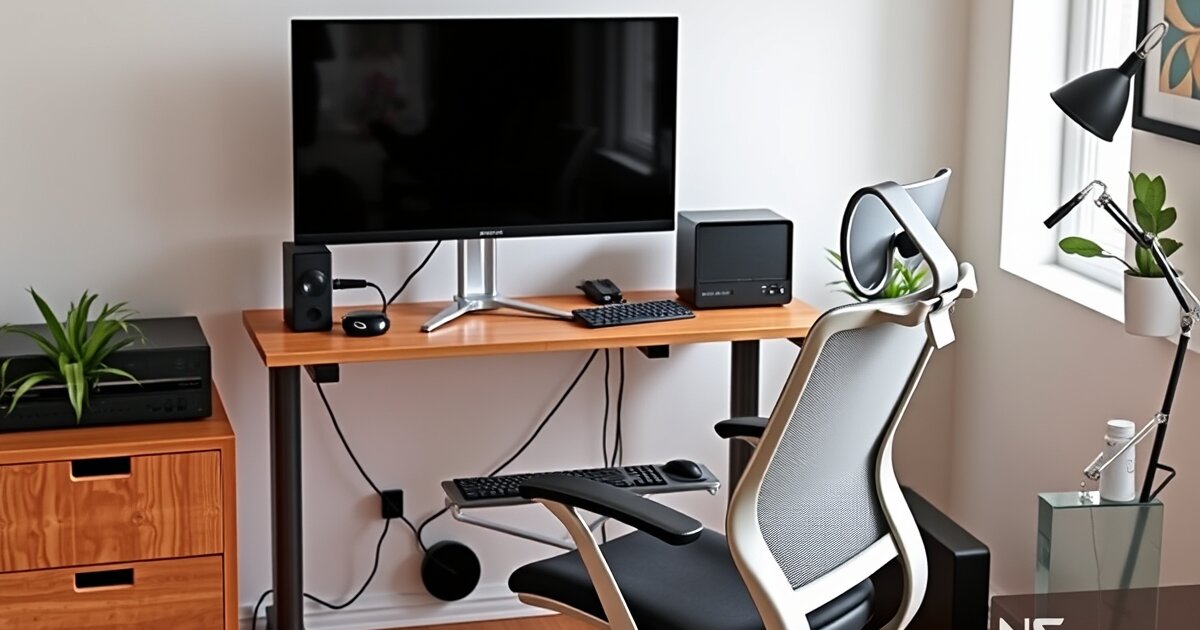
After six years of remote work — and two bouts of back pain that sent me to a physical therapist — I've learned that ergonomics isn't a luxury. It's maintenance. Like brushing your teeth, but for your spine.
The good news: you don't need to spend thousands to create an ergonomic home office. You need to understand a few key principles and apply them to whatever furniture you already have. This guide covers everything from chair adjustments to monitor placement to lighting, with specific product recommendations at every price point.
1 Your Chair: The Foundation of Everything
Your chair is the single most important piece of your home office. You're sitting in it for 6-10 hours a day. A bad chair doesn't just hurt — it gradually reshapes your posture in ways that take months of physical therapy to undo. If you're dealing with back pain specifically, check our guide to the best office chairs for sciatica for targeted recommendations.
How to Adjust Your Chair Correctly
- Seat height: Feet flat on the floor, thighs parallel to the ground (or slightly downward). Your knees should form a roughly 90-100° angle. If your feet don't reach the floor, use a footrest — don't let your legs dangle.
- Seat depth: Leave 2-3 fingers of space between the edge of the seat and the back of your knees. If the seat is too deep, it puts pressure on the back of your thighs and cuts off circulation.
- Lumbar support: The curve in the backrest should match the natural curve of your lower back. If your chair has adjustable lumbar, position it at your belt line. If it doesn't, a rolled-up towel works surprisingly well.
- Armrests: Adjust so your forearms rest lightly with shoulders relaxed (not shrugged up). Arms should form a 90° angle at the elbow. If your armrests push your shoulders up, lower them or remove them entirely.
- Recline: A slight recline (100-110°) is actually better for your spine than sitting bolt upright. It reduces disc pressure and engages your backrest. Unlock the recline and let yourself lean back slightly.
💡 The "Towel Test" for Lumbar Support
Roll a bath towel into a cylinder about 4 inches in diameter. Place it behind your lower back at belt level. If this feels significantly more comfortable than your chair alone, your chair's lumbar support is either inadequate or incorrectly positioned. This is the cheapest ergonomic upgrade you can make — $0.
Recommended Chairs by Budget
| Budget | Chair | Why |
|---|---|---|
| Under $200 | HON Ignition 2.0 | Best adjustability at this price. Real lumbar support. |
| $200–400 | Branch Ergonomic Chair | Excellent build, 7-year warranty, great mesh seat. |
| $400–800 | Steelcase Series 2 | Commercial-grade durability, outstanding lumbar. |
| $800+ | Herman Miller Aeron | The benchmark. 12-year warranty, perfect mesh, holds value. |
Full review: Herman Miller vs Secretlab Chair Comparison
2 Your Desk: Height Matters More Than Brand
The ideal desk height puts your elbows at a 90° angle when typing, with your forearms parallel to the floor. For most people, this is between 28-30 inches for a seated desk.
Fixed Desk vs. Standing Desk
Fixed desks work perfectly fine if they're the right height. The problem: most standard desks are 29-30 inches, which is too high for people under 5'10". If your desk is too high, your shoulders shrug up to reach the keyboard, causing neck and shoulder tension.
Standing desks solve this by letting you adjust to your exact height — both sitting and standing. Even if you never stand, the height adjustability alone justifies the upgrade. The ability to switch positions throughout the day is a bonus. Once you have your desk at the right height, positioning your monitor properly is the next crucial step for an ergonomic setup.
The Keyboard Tray Hack
If your desk is too high and you can't replace it, add an under-desk keyboard tray (~$40-80 on Amazon). It drops your typing surface 2-4 inches below the desk, letting you achieve the correct elbow angle without buying a new desk. This is especially useful for tall desks paired with shorter users.
Quick Height Guide
| Your Height | Ideal Seated Desk Height | Ideal Chair Seat Height |
|---|---|---|
| 5'0" – 5'4" | 24–26" | 15–17" |
| 5'5" – 5'9" | 26–28" | 17–19" |
| 5'10" – 6'1" | 28–30" | 19–21" |
| 6'2"+ | 30–32" | 21–23" |
Full review: Best Standing Desks Under $500
3 Your Monitor: Position Is Everything
Monitor placement is where most home offices go wrong. Too low (laptop on desk), too close (craning forward), or off to one side (neck twist). Here's how to get it right:
The Rules of Monitor Placement
- Distance: Arm's length away (20-26 inches). Extend your arm — your fingertips should just touch the screen.
- Height: Top of the screen at or slightly below eye level. Your eyes should naturally rest on the upper third of the display. Most monitors on their default stands are too low — a monitor arm or riser fixes this instantly.
- Tilt: Tilted back 10-20° so the screen faces your eyes directly. This prevents you from tilting your head to see the bottom of the screen.
- Angle: Directly in front of you, not off to one side. If you use two monitors, angle them in a slight V shape with the intersection centered on your nose.
⚠️ The Laptop Trap
Using a laptop screen as your primary display is an ergonomic nightmare. The screen is too low (forcing you to look down), too close (eye strain), and too small (squinting). If you work from a laptop, either connect an external monitor or use a laptop stand + external keyboard/mouse to raise the screen to eye level.
Dual Monitor Ergonomics
If you use two monitors equally, position them side by side with the inner bezels directly in front of your nose. Angle each outward ~15° so you can see both without turning your head excessively.
If you have a primary monitor and a secondary reference screen, put the primary directly in front and the secondary off to your dominant side, angled inward. Your neck should spend 80%+ of its time facing straight ahead.
Full guide: Dual Monitor Setup Guide
4 Keyboard & Mouse: Keep It Neutral
The goal is neutral wrist position: wrists straight (not bent up, down, or sideways), forearms parallel to the floor, shoulders relaxed. Here's how:
- Keyboard height: At or slightly below elbow level. If your desk is the right height, the keyboard sits on the desk. If your desk is too high, use a keyboard tray.
- Keyboard tilt: Flat or with a slight negative tilt (front edge higher than back). The keyboard feet that tilt the keyboard UP make wrist extension worse — never use them.
- Mouse position: Directly beside the keyboard, at the same height. Don't reach for it. A mouse that's too far to the right causes shoulder strain over time.
- Consider a split keyboard: Split/ergonomic keyboards let you position each half at shoulder width, which is more natural than bunching your hands together at center. The Kinesis Advantage 360 and ZSA Moonlander are excellent (but have a learning curve).
Signs Your Keyboard/Mouse Setup Is Wrong
- Tingling or numbness in fingers (especially ring/pinky) — wrist compression
- Pain on top of forearm — mouse too far away or too high
- Shoulder tension — armrests too high or keyboard too far forward
- Wrist pain — keyboard tilted up, wrists hyperextended
5 Lighting: The Overlooked Ergonomic Factor
Bad lighting causes eye strain, headaches, and fatigue faster than any other ergonomic issue. Most home offices have terrible lighting — a single overhead fixture that creates glare on the monitor and shadows on the keyboard.
Lighting Rules for Home Offices
- Position your monitor perpendicular to windows — never facing a window (glare) or with a window behind you (backlight on video calls). Side-lighting is ideal.
- Add bias lighting behind your monitor — a light strip or light bar that illuminates the wall behind your screen. This reduces the contrast between your bright monitor and dark surroundings, reducing eye fatigue.
- Use a desk lamp for task lighting — illuminate your keyboard and desk surface independently from the room lighting. LED desk lamps with adjustable color temperature are best (warm in the evening, cool during the day).
- Avoid overhead fluorescent lighting — it creates glare on screens and is harsh on the eyes. Diffused or indirect lighting is much better.
- Match color temperatures — mixing warm (2700K) and cool (5000K+) lights in the same room creates visual dissonance. Pick one temperature range for your office.
Recommended: BenQ ScreenBar Halo (monitor light bar) + any adjustable LED desk lamp.
6 Movement: The Best Posture Is Your Next Posture
Here's the uncomfortable truth: no static posture is healthy for 8 hours. Even perfect ergonomics won't save you if you sit frozen all day. The human body is designed to move, and your setup should encourage that.
Movement Strategies
- The 20-20-20 rule: Every 20 minutes, look at something 20 feet away for 20 seconds. This resets your eye focus and prevents eye strain.
- Stand/sit intervals: If you have a standing desk, alternate every 30-45 minutes. Don't stand all day — that's just as bad as sitting all day.
- Walking meetings: Take phone calls while walking. Even pacing around your office counts.
- Micro-stretches: Roll your shoulders, stretch your neck, flex your wrists between tasks. These 10-second movements prevent stiffness from building up.
- The water bottle trick: Use a small water bottle instead of a large one. You'll get up to refill more often, forcing movement breaks.
📱 Apps That Help
Stretchly (free, all platforms) — reminds you to take micro-breaks and stretch breaks at configurable intervals. Non-intrusive, lightweight, and actually useful. Stand Reminder (Apple Watch) works too, but Stretchly is more configurable.
The Complete Ergonomic Home Office Checklist
Print this out and check each item:
- Feet flat on floor (or footrest)
- Thighs parallel to ground
- Lumbar support at belt level
- Slight recline (100-110°)
- Armrests at elbow height, shoulders relaxed
- Elbows at 90° when typing
- Wrists straight and neutral
- Keyboard flat or negative tilt
- Mouse next to keyboard, same height
- Top of monitor at eye level
- Monitor arm's length away
- Monitor perpendicular to window
- Bias lighting behind monitor
- Task lighting on desk surface
- Break reminder set (20-20-20)
- Standing/movement intervals planned
Budget Builds: Ergonomic Setups at Every Price
| Budget | Setup | Total |
|---|---|---|
| Under $100 | Laptop stand ($25) + external keyboard ($30) + mouse ($15) + rolled towel (free) | ~$70 |
| $200–400 | HON Ignition 2.0 chair ($200) + monitor arm ($35) + BenQ GW2780 monitor ($180) | ~$415 |
| $500–1000 | Branch chair ($350) + FlexiSpot E7 desk ($480) + monitor arm ($130) | ~$960 |
| $1500+ | Herman Miller Aeron ($1,395) + Uplift V2 desk ($600) + Dell U2724D ($380) | ~$2,375 |
Frequently Asked Questions
How high should my monitor be?
The top of your screen should be at or slightly below eye level. The center of the screen should be about 15-20 degrees below your horizontal line of sight. If you wear bifocals or progressive lenses, lower the monitor an additional 2-3 inches so you can view the screen through the appropriate part of your lenses.
How far should I sit from my monitor?
An arm's length away — roughly 20-26 inches for a 24-27 inch monitor. For larger screens (32"+) or ultrawides, sit slightly farther (26-32 inches) so you can take in the whole screen without excessive eye movement.
How often should I take breaks?
Follow the 20-20-20 rule for eye breaks (every 20 minutes). Take a full standing/walking break every 45-60 minutes. These micro-breaks are more effective than one long break every few hours.
Is it worth investing in an expensive chair?
Yes — if you sit for 6+ hours daily. A good ergonomic chair is a health investment that prevents back problems, neck pain, and poor posture. A $500-1,000 chair with a 10+ year warranty costs less per year than a chiropractor visit. That said, a $200 chair properly adjusted beats a $1,500 chair used incorrectly. Adjustment matters more than brand.
Related guides:
- Best Standing Desks 2026
- Best Ergonomic Chairs Under $500
- 15 Desk Accessories That Boost Productivity
- Dual Monitor Setup Guide
- Best Ergonomic Chairs Under $300
- Best Ergonomic Keyboards for Programmers
Get our best setup tips and product picks each week.
Get the free newsletter →