Home AI Lab Desk Setup: Complete Hardware & Workspace Guide (2026)
Last updated: February 20, 2026 · Prices verified at time of writing
In This Article
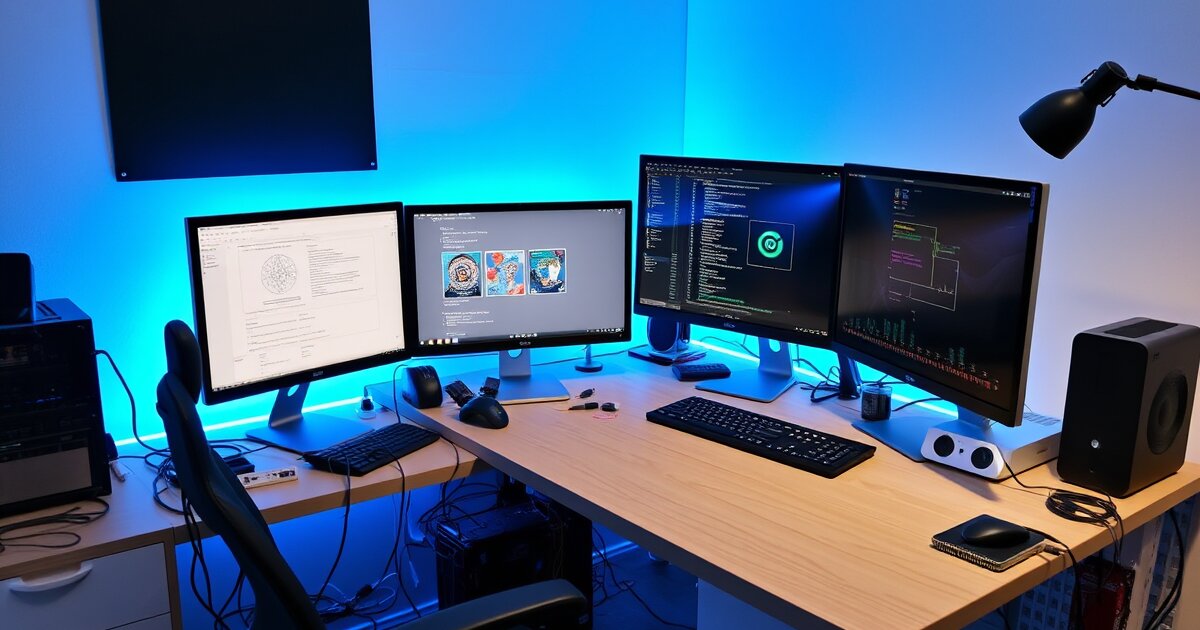
A home AI lab isn't a regular home office with more monitors. It's a workspace designed around compute — always-on inference servers, GPU workstations, multiple displays for monitoring model outputs, and the power/cooling/network infrastructure to support all of it.
I've built four complete home AI lab setups over the past year, from a $1,500 budget corner desk build to a $5,000 premium standing desk configuration. Each one taught me something about what matters and what doesn't when you're designing a workspace around local AI workloads.
This guide covers everything from room selection to cable routing. If you already have a desk and just need to know about hardware, check our Ollama hardware requirements guide. This article is about the complete physical workspace.
The bottom line: Start with power and network — they constrain everything else. Choose your desk based on how many compute devices you're running, not just monitors. And invest in noise management early, because an always-on AI lab generates more ambient noise than you expect.
What Makes an AI Lab Different from a Home Office
A traditional home office needs a desk, a chair, a monitor, and maybe a webcam. A home AI lab needs all of that plus:
| Requirement | Home Office | Home AI Lab |
|---|---|---|
| Power draw | 100-200W total | 300-1,000W+ total |
| Always-on devices | Maybe a NAS | 1-3 compute nodes, NAS, networking |
| Network | WiFi is fine | Wired ethernet, possibly 2.5GbE or 10GbE |
| Cooling | Standard HVAC | Additional airflow for sustained compute |
| Noise sources | Almost none | Fans, GPU coil whine, multiple devices |
| Cable count | 5-10 | 15-30+ |
| UPS/power protection | Nice to have | Mandatory |
| Desk surface area | 48-55" sufficient | 60-80"+ preferred |
| Monitor count | 1-2 | 2-3, sometimes 4 |
The infrastructure requirements are closer to a small server room than a home office. Planning for this upfront saves you from the frustrating cycle of "buy thing, realize you need more power/space/cooling, rearrange everything, repeat."
Room Planning: Before You Buy Anything
Room Selection Criteria
If you have a choice of rooms, prioritize in this order:
- Dedicated circuit access. A room with its own 15A or 20A breaker circuit is ideal. Sharing a circuit with a kitchen or laundry room means tripped breakers.
- Ethernet access. A room near your router/switch or with existing ethernet drops saves you from running long cables or relying on WiFi.
- Ventilation. An AI lab generates heat. A room with a window, ceiling fan, or proximity to an HVAC vent manages this passively.
- Noise isolation. Sustained fan noise is 35-50 dB. A room with a door that closes keeps this contained.
- Size. A 10x10 foot room comfortably fits an L-desk, a server shelf, and a chair. An 8x8 room works with a corner desk.
Electrical Assessment
Before buying any hardware, check your room's electrical capacity:
- Count the outlets. A home AI lab typically needs 8-12 outlet slots. Don't daisy-chain power strips — it's a fire hazard.
- Identify the circuit. Turn off breakers one at a time. Ideally, your AI lab room is on its own 15A (1,800W max) or 20A (2,400W max) circuit.
- Calculate your total draw. Mac Mini: 15-40W. GPU workstation: 200-500W. Monitors (x2): 50-80W. Networking: 10-20W. NAS: 30-60W. Stay under 80% of circuit capacity.
Floor Plan Layout
Sketch your room on paper before moving anything. Mark outlet locations, ethernet jacks, window/vent locations, door swing direction, and cable run paths.
Desk Selection: Corner vs L-Desk vs Standing Desk
Option 1: Standing Desk (60-80")
Best for: 1-2 compute nodes, dual monitors, clean aesthetics
Pros
- Sit-stand flexibility for long workdays
- Clean, modern look
- Compatible with monitor arms and under-desk mounts
- Excellent cable management options
Cons
- Linear layout limits surface area
- 60" minimum for dual 32" monitors
- Compute hardware must go under-desk or on shelf
- Standing desk motors add a failure point
Recommended: FlexiSpot E7 with 72" desktop ($549-$650). The E7's 355 lb capacity handles a full AI workstation load.
Option 2: L-Shaped Desk
Best for: Multi-device labs, 3+ monitors, projects that need spread-out workspace
Pros
- 50-70% more surface area than a linear desk
- Dedicated wing for compute hardware
- Natural monitor placement follows the L-shape
- Space for a dedicated "server zone"
Cons
- Larger footprint — needs a bigger room
- Corner joint can be a weak point on budget models
- Harder to cable-manage the corner
- Most L-desks are not height-adjustable
Budget: SHW 55" L-Shaped Desk ($120). Premium: Autonomous SmartDesk Corner ($649) with motorized height adjustment.
Option 3: Corner Desk
Best for: Small rooms, compact setups, single-compute-node labs
Recommended: CubiCubi Small L-Shaped Desk ($70) for the tightest spaces. 47" on each wing.
Our Recommendation
For most home AI labs, the standing desk (60-72") with a separate utility shelf is the best approach. The desk holds your monitors, keyboard, mouse, and daily-use items. The shelf — a simple 5-tier wire shelving unit ($50-$80) placed next to or behind the desk — holds your compute hardware, UPS, networking gear, and NAS. This separates your clean workspace from your noisy, hot compute hardware.
Power Delivery Planning
UPS: Non-Negotiable
Every compute device in your AI lab should be on a UPS. A power flicker during model loading corrupts downloads. A brief outage during sustained inference can leave models in a broken state.
| Load Level | Recommended UPS | Price |
|---|---|---|
| Single Mac Mini | APC BE600M1 (600VA) | $75 |
| Mac Mini + monitors | CyberPower CP1000AVRLCD (1000VA) | $130 |
| Full AI lab (multi-device) | CyberPower CP1500AVRLCD (1500VA) | $165 |
| GPU workstation | APC SMT1500 Smart-UPS (1500VA) | $400 |
Power Strip Strategy
- Strip 1 (UPS-protected): Compute devices — Mac Mini(s), GPU workstation, NAS
- Strip 2 (UPS-protected): Networking — router, switch, access point
- Strip 3 (surge-protected): Monitors, desk lamp, phone charger, non-critical peripherals
Cable Routing
Power cables are the thickest, stiffest cables in your setup. Route them first. Keep power cables separated from ethernet and data cables by at least 2 inches to prevent electromagnetic interference.
Network Requirements
Minimum: Gigabit Wired Ethernet
WiFi adds latency and drops connections under sustained API load. Run Cat6 (or Cat6A for future-proofing) from your router to your AI lab. Use cable raceways ($15) for a clean installation if routing between rooms.
Recommended: A Dedicated Switch
| Level | Product | Price |
|---|---|---|
| Budget | TP-Link TL-SG105 5-port gigabit | $15 |
| Better | TP-Link TL-SG108 8-port gigabit | $22 |
| Best | TP-Link TL-SG108-M2 8-port 2.5GbE | $65 |
Advanced: VLANs and Network Segmentation
If you're exposing Ollama to your local network, consider putting your AI lab on its own VLAN for isolation. Requires a prosumer router like the Ubiquiti Dream Machine or a pfSense box. Not required, but a nice-to-have.
Noise Management
Noise Sources
| Source | Typical Volume | Character |
|---|---|---|
| Mac Mini M4 (idle) | <25 dB | Silent |
| Mac Mini M4 Pro (AI inference) | 32-38 dB | Soft fan hum |
| GPU workstation (AI inference) | 40-55 dB | Noticeable fan noise |
| NAS (spinning drives) | 30-40 dB | Low rumble + seek clicks |
| Ethernet switch | Silent | N/A |
| UPS | <25 dB | Silent normally |
Noise Reduction Strategies
- Distance. Move compute hardware 4-6 feet from your seating position. Sound drops ~6 dB for every doubling of distance.
- Isolation. Use anti-vibration pads ($15) under vibrating devices.
- Enclosure. A three-sided shelf with open front and top reduces noise 5-10 dB while maintaining airflow.
- Active noise masking. A white noise machine ($45) masks irregular fan sounds.
- Headphones. ANC headphones eliminate all lab noise — but design your lab to be comfortable without them.
Complete Setup Recommendations
Budget Build: $1,500 — The Corner Desk Lab
| Component | Product | Price |
|---|---|---|
| Desk | CubiCubi L-Shaped Corner Desk, 47" | $70 |
| Chair | HON Ignition 2.0 | $300 |
| Monitor | Dell S2722QC 27" 4K USB-C | $270 |
| Monitor Arm | HUANUO Single Monitor Arm | $30 |
| Compute | Mac Mini M4, 24GB, 512GB | $699 |
| Mount | PZOZ Under-Desk Mount | $18 |
| UPS | APC BE600M1 600VA | $75 |
| Cable Management | PAMO Tray + Velcro Ties | $40 |
| Total | ~$1,502 |
What it runs: Single-monitor workspace with Ollama serving 7B-14B models. Good for individual use — coding assistance, local chat, experimentation.
Mid-Range Build: $3,000 — The Standing Desk Lab
| Component | Product | Price |
|---|---|---|
| Desk | FlexiSpot E7, 60" desktop | $549 |
| Chair | Secretlab Titan Evo | $500 |
| Monitors | 2x Dell S2722QC 27" 4K | $540 |
| Monitor Arms | HUANUO Dual Monitor Arm | $40 |
| Compute | Mac Mini M4 Pro, 48GB, 512GB | $1,599 |
| Mount | HumanCentric Under-Desk Mount | $30 |
| UPS | CyberPower CP1500AVRLCD | $165 |
| Switch | TP-Link TL-SG108 8-port | $22 |
| Cable Management | Full kit (tray, spine, ties, clips) | $60 |
| Anti-Fatigue Mat | Ergodriven Topo | $99 |
| Total | ~$3,604 |
What it runs: Dual-monitor standing desk with Ollama serving up to 70B models. This is the setup we use daily and recommend for most serious AI practitioners.
Premium Build: $5,000 — The Full Lab
| Component | Product | Price |
|---|---|---|
| Desk | FlexiSpot E7, 72" desktop | $650 |
| Chair | Herman Miller Aeron (refurbished) | $700 |
| Monitors | 2x LG 32UN880-B 32" 4K Ergo | $680 |
| Monitor Arms | Ergotron LX Dual Stacking | $350 |
| Primary Compute | Mac Mini M4 Pro, 48GB, 1TB | $1,799 |
| Secondary Compute | Mac Mini M4, 24GB, 512GB | $699 |
| Shelf | 5-tier wire shelving unit | $60 |
| Mounts | HumanCentric (x2) | $60 |
| UPS | CyberPower CP1500AVRLCD (x2) | $330 |
| Switch | TP-Link 2.5GbE 8-port | $65 |
| NAS | Synology DS224+ with 2x 4TB | $450 |
| Cable Management | Premium full kit | $100 |
| Noise Control | Sorbothane pads + LectroFan | $60 |
| Anti-Fatigue Mat | Ergodriven Topo | $99 |
| Total | ~$6,102 |
What it runs: Dual-compute setup — M4 Pro handles large model inference, M4 handles lightweight tasks and serves as backup. NAS stores datasets and model files centrally. Dual 32" 4K monitors provide massive workspace.
Component Checklist
Must-Have
- Desk (sized for your monitor count + workspace needs)
- Chair (ergonomic — you'll sit here 6-10 hours/day)
- Primary compute device (Mac Mini or GPU workstation)
- Monitor (27" 4K minimum for AI development)
- Monitor arm (saves desk space, adjustable positioning)
- UPS (protects compute hardware from power issues)
- Ethernet cable (wired connection to compute devices)
- Cable management tray (keeps under-desk organized)
- Cable ties (velcro, not zip ties — you'll rearrange)
Strongly Recommended
- Under-desk compute mount or shelf
- Ethernet switch (if multiple wired devices)
- Cable management spine (vertical routing)
- Surge-protected power strip
- External SSD (model storage overflow)
- Anti-fatigue mat (if standing desk)
Nice to Have
- Second monitor
- NAS (centralized storage for datasets and models)
- White noise machine
- Anti-vibration pads
- Desk lamp / monitor light bar
- USB hub
Frequently Asked Questions
How much does it cost to run a home AI lab 24/7?
Electricity cost for a Mac Mini M4 Pro running Ollama 24/7 is approximately $3-5/month at US average electricity rates ($0.16/kWh). A full lab with dual compute, NAS, monitors, and networking runs $15-30/month. Compare that to cloud GPU costs ($0.50-$3/hour for inference-capable instances) and the math favors local hardware within 2-4 months of continuous use.
Do I need a dedicated room or can I set up in a shared space?
A dedicated room is ideal but not required. I've seen effective home AI labs set up in bedroom corners, living room alcoves, and even large closets (with ventilation modifications). The key constraint is noise — if your compute hardware is audible and the space is shared with sleeping or working household members, you'll need aggressive noise management or a door that closes.
How do I keep the room cool with all this hardware running?
A Mac Mini generates minimal heat — 15-45W is trivial for any room with standard HVAC. A GPU workstation generating 200-500W of heat is a different story. In a small room, a dedicated GPU workstation can raise ambient temperature by 5-10°F. Solutions: ceiling fan, portable AC unit for summer, or simply leave the door open. In winter, your AI lab is literally a space heater — adjust your thermostat accordingly.
Standing desk or regular desk for an AI lab?
Standing desk if you're spending 6+ hours/day at the lab and you value the health benefits of alternating between sitting and standing. Regular desk if you're optimizing for cost and simplicity — you'll save $300-$500 and eliminate the motor as a failure point. For most AI practitioners who are in front of their lab for extended hours, a standing desk is the better choice.
What's the minimum viable home AI lab?
A Mac Mini M4 with 24GB ($699), a 27" monitor you already own, and an ethernet cable. Run Ollama, pull a 7B model, and start experimenting. You don't need to buy everything on this page to start. Build incrementally — add a UPS next, then cable management, then a better desk, then a second monitor. The worst approach is to plan a $5,000 build, get overwhelmed, and never start.
Developer Tools: Setting up your AI lab software stack? DevToolKit.cloud offers free tools for developers working with local LLMs — including a JSON Formatter for debugging API responses and config files.
Related Articles
Get our best setup tips and product picks each week.
Get the free newsletter →