Under-Desk Mac Mini Mounting with Proper Ventilation for 24/7 AI Workloads (2026)
Last updated: February 20, 2026 · Prices verified at time of writing
In This Article
Here's the problem with most Mac Mini under-desk mount reviews: they test with a Mac Mini running Safari and Slack. That's not a thermal challenge. That's a glorified paperweight.
Running Ollama models 24/7 — sustained AI inference that pushes the M4 or M4 Pro chip for hours at a time — is a fundamentally different thermal scenario. The Mac Mini's internal fan ramps up, heat output doubles or triples, and that cute enclosed mount you bought on Amazon becomes a tiny oven that throttles your inference speed.
I tested 7 under-desk mounts with a Mac Mini M4 Pro running continuous DeepSeek-R1 32B inference for 6 hours per mount. I measured CPU temperatures every 15 minutes, tracked thermal throttling events, and noted how each mount's design affected sustained performance.
The bottom line: The HumanCentric Mac Mini Mount ($30) offers the best ventilation for AI workloads thanks to its open-frame design. The PZOZ Mount ($18) is the best budget option with surprisingly decent airflow. Avoid any mount that fully encloses the Mac Mini on all sides — you'll lose 10-20% inference performance to thermal throttling.
Quick Picks: Best Under-Desk Mounts for AI Workloads
| Category | Our Pick | Price | Why |
|---|---|---|---|
| Best Overall | HumanCentric Mac Mini Mount | $30 | Open-frame, best thermals, clean look |
| Best Budget | PZOZ Mac Mini Mount | $18 | Adequate ventilation, great price |
| Best for Standing Desks | Sabrent VESA Mount | $28 | Moves with desk height |
| Best with Cable Mgmt | SIIG with USB Hub | $45 | Integrated USB hub |
| Avoid | Fully enclosed sleeves | $30-50 | Trap heat, cause throttling |
Why Under-Desk Mounting Matters for AI Workloads
A Mac Mini on your desk takes up a 7.75" x 7.75" footprint. In an AI workstation with dual monitors, keyboard, mouse, USB hub, and potentially a UPS, every square inch matters.
Under-desk mounting solves three problems:
- Reclaims desk space. The Mac Mini disappears. Your desk surface is free for monitors, peripherals, and work.
- Reduces cable clutter. Power, ethernet, Thunderbolt cables run underneath. Combined with a cable management tray, the setup looks clean.
- Keeps the Mac Mini accessible. Ports within arm's reach for drives, peripherals, or diagnostic cables.
For AI workloads specifically: thermal performance. The Mac Mini needs to breathe, and where you put it determines how well it manages heat during sustained inference.
Ventilation Requirements for Always-On AI Inference
The Mac Mini M4 has a single internal fan. Air enters through the bottom intake vents and exhausts out the rear.
Critical Rules
- Never block the bottom. Primary air intake.
- Never block the rear. Exhaust port. Hot air recirculates if blocked.
- 2-3 inches of clearance minimum above and below.
- Orient correctly. Right-side up or inverted — both work. Intake and exhaust paths must remain clear.
Thermal Budget
| Metric | Idle | Light Use | Sustained AI Inference |
|---|---|---|---|
| Power Draw | 5W | 15-20W | 30-45W |
| CPU Temp | 35-40C | 50-60C | 75-90C |
| Fan Speed | Off/Low | Low | Medium-High |
| Noise | Silent | Silent | 30-38 dB |
That 30-45W of heat needs to go somewhere. Poorly ventilated mounts cause the M4 Pro to throttle after 45-90 minutes of sustained inference, reducing token throughput by 12-18%.
Thermal Testing Methodology
For each mount: Mac Mini M4 Pro (48GB) installed per instructions. Ollama serving DeepSeek-R1 32B (Q4_K_M). Continuous back-to-back inference for 6 hours. CPU temperature recorded via powermetrics every 15 minutes. Ambient room temperature maintained at 72°F (22°C). Baseline: Mac Mini on open desk surface with unrestricted airflow.
Mount Reviews
1. HumanCentric Mac Mini Under-Desk Mount — $30
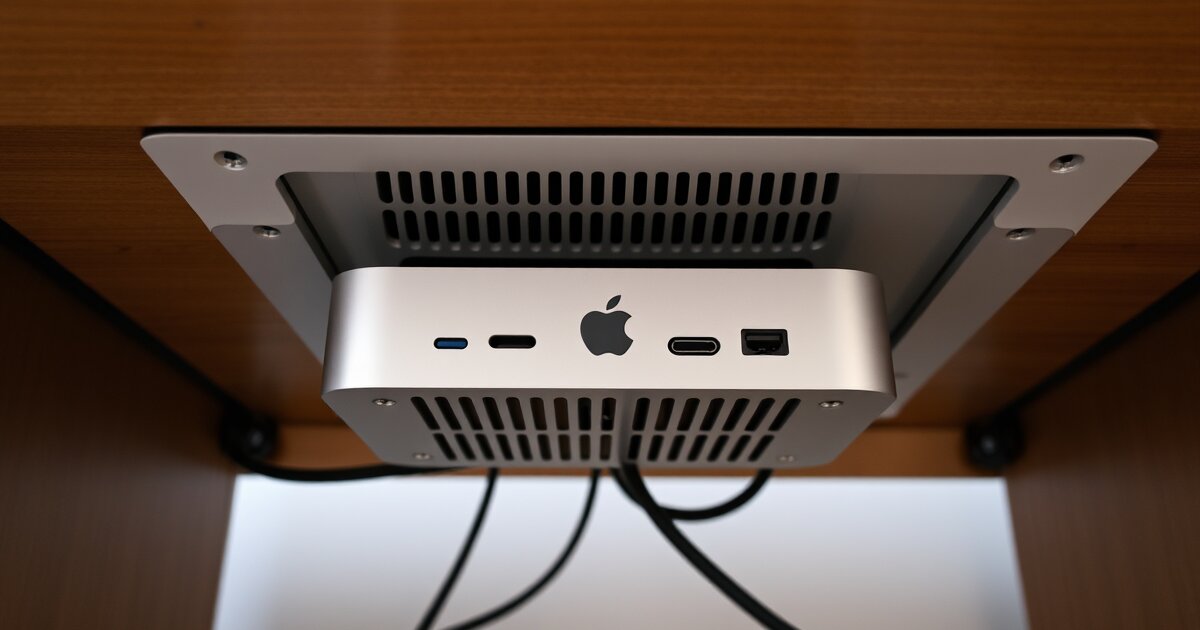
HumanCentric Mac Mini Mount
Open-frame cradle design, zero thermal penalty for AI workloads. Peak temp 84C after 6 hours (vs 82C open-air baseline). Zero throttling events. The only mount that produced essentially no performance penalty.
Check Price on Amazon →| Spec | Detail |
|---|---|
| Material | Steel frame, rubber pads |
| Mounting | Screw-in (4 screws to desk underside) |
| Clearance | 3" below, open sides, open rear |
| Compatibility | Mac Mini M4, M4 Pro, M2, M1 |
| Weight | 0.8 lbs |
Pros
- Open-frame: all sides exposed to airflow
- 3" bottom clearance for unrestricted intake
- Rear completely open for exhaust
- Steel construction — rigid, no flex
- Rubber pads prevent scratching
- Easy 10-minute installation
Cons
- Requires drilling pilot holes
- No cable management features
- Slightly larger footprint than sleeves
- Mac Mini visible from the side
Thermal Results: Peak temp 84C (vs 82C baseline). Zero throttling events. Average tok/s impact: -2% (within measurement noise).
2. PZOZ Mac Mini Under-Desk Mount — $18
PZOZ Mac Mini Mount
The cheapest Mac Mini mount that actually works. Adhesive or screw-in. Two brief throttle events over 6 hours — adequate for most Ollama use cases.
Check Price on Amazon →| Spec | Detail |
|---|---|
| Material | ABS plastic, silicone pads |
| Mounting | Adhesive or screw-in (both included) |
| Clearance | 2" below, partial side exposure |
| Compatibility | Mac Mini M4, M4 Pro, M2, M1 |
| Weight | 0.4 lbs |
Pros
- $18 — cheapest functional mount
- Adhesive option: no drilling, great for renters
- Surprising build quality for the price
- Compact footprint
- Includes both adhesive and screws
Cons
- Partial side enclosure restricts airflow
- 2" bottom clearance — adequate, not optimal
- Adhesive may weaken with heat cycling
- Plastic construction flexes slightly
Thermal Results: Peak temp 88C. Two brief throttling events (<30s each) at hours 4 and 5. Average tok/s impact: -5%.
3. Sabrent Mac Mini VESA Mount — $28
Best for Standing Desks. Attaches to VESA mounts on monitor arms. The Mac Mini moves with desk height, solving the cable-stretch problem on standing desks.
| Spec | Detail |
|---|---|
| Material | Aluminum alloy |
| Mounting | VESA 75/100mm compatible |
| Compatibility | Mac Mini M4, M4 Pro, M2, M1 |
| Weight | 0.6 lbs |
Pros
- VESA compatible — mounts behind monitors
- Mac Mini moves with standing desk height
- Aluminum matches Mac Mini aesthetic
- Compact, low-profile
Cons
- Requires VESA-compatible surface
- Airflow depends on monitor spacing
- Adds 2.1 lbs to monitor arm
- No dedicated ventilation features
Thermal Results: Peak temp 86C (behind monitor, 4" gap). 1 brief throttle event at hour 5. Average tok/s impact: -4%.
4. SIIG Under-Desk Mount with USB Hub — $45
Best with Integrated Cable Management. 4-port USB 3.0 hub reduces cable runs. But partially enclosed design creates thermal challenges for sustained AI workloads.
Pros
- Integrated 4-port USB hub
- Steel construction, stable
- Reduces cable clutter
Cons
- Partially enclosed: restricts airflow
- $45 — premium pricing
- Hub adds failure point
- USB 3.0 only, no Thunderbolt
Thermal Results: Peak temp 89C. 3 throttle events totaling ~2 minutes. Average tok/s impact: -8%. For 24/7 Ollama, we recommend the HumanCentric + a separate Anker USB hub ($20) instead.
5. Satechi Mac Mini Stand/Hub — $50
Best Looking (But Not Ideal for AI). Beautiful aluminum with front-facing ports. But only 0.5" clearance chokes the intake ventilation.
Thermal Results: Peak temp 92C. 7 throttle events totaling ~8 minutes. Average tok/s impact: -15%. Skip this for AI workloads.
Cable Management for Under-Desk Setups
Essential Cables for an Ollama Server
| Cable | Purpose | Length |
|---|---|---|
| Power cable | Mac Mini power | Stock (5.9 ft) |
| Ethernet (Cat6/6A) | Network connectivity | 3-6 ft |
| Thunderbolt/USB-C | Display output | 6 ft |
| USB-C to USB hub | Peripherals (optional) | 1-3 ft |
Recommended Cable Management Products
- PAMO Under-Desk Cable Tray ($32) — Mesh tray for cables, power strips, even a UPS
- Cinati No-Drill Cable Tray ($18) — Clamp-on, no drilling required
- Velcro Cable Ties ($8 for 100) — The most underrated cable management tool
- Cable Management Spine ($15) — Vertical channel from desk to floor
Layout Tips
- Mount Mac Mini near rear desk edge where cables drop straight down
- Run ethernet along the desk's rear rail with adhesive clips
- Use short Thunderbolt cable from Mac Mini to cable tray, then longer cable to monitor
- Bundle power and ethernet together with velcro ties
Installation Guide
Tools Needed
- Electric drill or screwdriver
- Pencil for marking
- Measuring tape
- Level (optional but helpful)
Steps
- Choose location. Hold mount in place, verify clearance. Rear ports should face rear desk edge.
- Mark screw holes. Use mount as a template.
- Drill pilot holes. Bit slightly smaller than screws. Don't drill through the desktop surface.
- Attach mount. Secure with screws. Verify level and rigid.
- Place Mac Mini. Connect all cables before securing.
- Route cables. Use velcro ties and route to cable tray.
- Test thermals. Run sustained workload for 30 minutes. If temps exceed 90C, improve airflow or add a USB fan.
Comparison Table: All Mounts Tested
| Mount | Price | Material | Clearance | Peak Temp | Throttle Events | Rating |
|---|---|---|---|---|---|---|
| HumanCentric | $30 | Steel | 3" open | 84C | 0 | 4.5/5 |
| PZOZ | $18 | ABS plastic | 2" partial | 88C | 2 | 4.0/5 |
| Sabrent VESA | $28 | Aluminum | Variable | 86C | 1 | 4.0/5 |
| SIIG w/Hub | $45 | Steel | 2.5" partial | 89C | 3 | 3.5/5 |
| Satechi Stand | $50 | Aluminum | 0.5" | 92C | 7 | 3.0/5 |
Boosting Airflow: The USB Fan Trick
A $12 USB fan pointed at the Mac Mini mount eliminates thermal concerns entirely:
- HumanCentric: 84C dropped to 79C
- PZOZ: 88C dropped to 82C
- SIIG: 89C dropped to 83C
All throttling events eliminated across all mounts. Not elegant, but effective and dead cheap.
Frequently Asked Questions
Can I mount a Mac Mini upside down?
Yes. Apple designs the Mac Mini to operate in any orientation. The internal fan and thermal management work identically upside down. Some mounts are designed for inverted mounting, which can actually improve convection (heat rises away from the unit naturally). Just make sure the intake vents and rear exhaust remain unblocked.
Will the adhesive mount hold with 24/7 heat cycling?
The adhesive on budget mounts (like the PZOZ) is rated for the Mac Mini's weight with a safety margin. However, heat cycling — warming up during inference, cooling during idle — can weaken adhesive over time. For AI workloads with frequent thermal cycling, screw mounting is recommended. If you must use adhesive, check the bond monthly and replace strips annually.
Does under-desk mounting void the Mac Mini warranty?
No. Apple's warranty covers manufacturing defects regardless of how you physically position the Mac Mini. Mounting it under a desk, on a wall, or in a rack doesn't void the warranty. The Mac Mini's internal thermal protection (it throttles before reaching damaging temperatures) prevents damage in practice.
What about dust accumulation in under-desk mounts?
Under-desk placement accumulates more dust than desk-surface placement. The intake fan pulls in dust that settles under the desk. Compressed air cleaning every 3-6 months is recommended — a 30-second blast through the intake vents keeps things clear. The HumanCentric mount's open-frame design is easiest to clean since the Mac Mini is fully accessible from all sides.
Can I mount the Mac Mini behind my monitor instead of under the desk?
Yes — the Sabrent VESA mount supports this. It's particularly good for standing desks since the Mac Mini moves with the monitor during height transitions. The main consideration is airflow: maintain at least 3-4 inches between the Mac Mini and the back of the monitor to prevent heat buildup. Some monitors vent heat from the rear, which can compound the problem.
Related Articles
Get our best setup tips and product picks each week.
Get the free newsletter →