Cable Management for Multi-Monitor AI Workstations (2026 Guide)
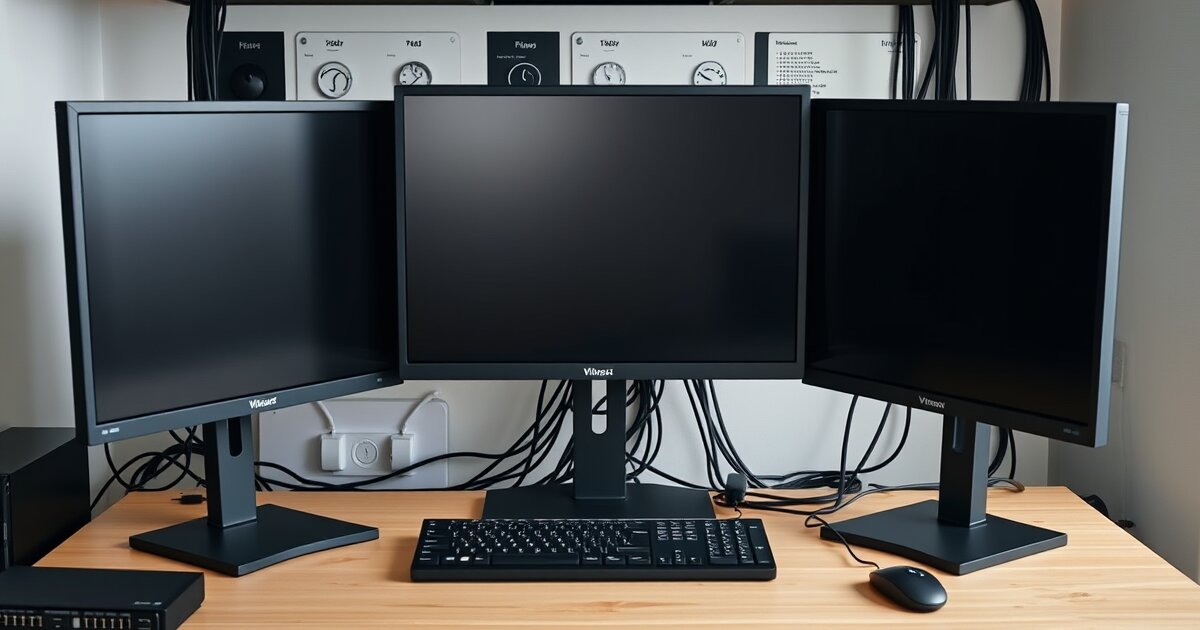
Setting up a multi-monitor AI workstation creates a cable nightmare that makes your setup look like a server room explosion. Between 2-4 monitors, Mac Mini or rack-mounted servers, external GPUs, and all the peripherals needed for AI development, you're looking at 15+ cables minimum. Here's how to tame that chaos professionally.
I've tested dozens of cable management solutions across multiple AI workstation builds, from compact Mac Studio setups to full server rack configurations. This guide covers the specific challenges of multi-monitor AI workstations and the exact products that solve them.
Quick Picks: Multi-Monitor AI Workstation Cable Management
| Product | Best For | Price | Key Feature |
|---|---|---|---|
| VIVO Dual Monitor Arm | 2-monitor setups | $89 | Integrated cable channels |
| 24" Under-Desk Tray | 3-4 monitor power | $35 | Extra-large capacity |
| Cable Management Spine | Vertical cable routing | $18 | Flexible height adjustment |
| J-Channel Raceway Kit | Wall-mounted cables | $25 | Multiple cable capacity |
| 2" Desk Grommets | Clean desk pass-through | $12 | Large cable bundles |
| Heavy-Duty Velcro Ties | Thick power cables | $8 | Extra-strong hold |
The Multi-Monitor Cable Challenge
AI workstations create unique cable management problems you don't see in typical office setups:
- Cable volume: 2-4 monitors = 2-4 power cables + 2-4 video cables minimum
- Thick cables: DisplayPort 1.4, Thunderbolt 4, and high-wattage power cables are bulky
- Server gear: Mac Mini, external GPUs, network switches add more power and data cables
- Heat considerations: Power cables bundled too tightly can create heat buildup
- Signal interference: High-bandwidth video signals need separation from power cables
The key is creating separate routing paths for power and data, with enough capacity to handle the cable volume without creating heat or interference issues.
1. Monitor Arms: The Foundation
Monitor arms with built-in cable management are the single biggest improvement for multi-monitor setups. They eliminate 4-8 cables from your desk surface and route them cleanly through the arm structure.
VIVO Dual Monitor Arm with Cable Management
Supports two 24-32" monitors with integrated cable channels running through both arms. Spring-loaded gas mechanism, full adjustment range, and cable grommets at every joint. The cable management isn't an afterthought — it's designed in.
$89 • Fits 1-2" thick desks • Up to 22 lbs per monitor
For 3-4 monitor setups, use dual monitor arms or combine a dual arm with single arms. This keeps cable management consistent and reduces the complexity of individual cable routing.
Alternative: HUANUO Dual Monitor Mount
Budget option at $45 with basic cable clips instead of integrated channels. Works fine for lighter monitors (under 15 lbs each) but cable management isn't as clean.
2. Under-Desk Cable Trays: Sized for AI Workstations
Standard 16" cable trays are too small for AI workstations. You need at least 24" length to fit multiple power strips, power adapters, and the cable volume from 3-4 monitors plus server gear.
24" Mesh Cable Tray
Extra-large mesh construction holds multiple power strips, Mac Mini power adapters, external GPU power supplies, and excess cable length. Mounts with clamps (no screws) or screw-in brackets for permanent installation.
$35 • 24"L x 6"W x 4"H • Weight capacity: 22 lbs
Pro Tip: Dual-Level Trays
For complex setups with Mac Studio, external GPU, and network gear, consider a dual-level approach: mount one tray for power equipment (strips, adapters) and a second smaller tray or shelf for Mac Mini or small server hardware. This separates heat-generating components and improves airflow.
3. Cable Spines: Vertical Route Management
Cable spines (also called cable snakes) handle the vertical run from your desk down to floor-level cable trays or wall outlets. This is crucial for standing desks or setups where the desk height changes.
The Flexible Cable Management Spine ($18) handles 10-15 cables and extends/contracts with desk height adjustments. Mount it to the desk frame, not the wall, so it moves with standing desk adjustments.
4. Wall Cable Management: J-Channel Systems
For cables that run along walls (to wall outlets, ethernet, or between workstation components), J-channel raceways provide the capacity needed for thick AI workstation cables.
Standard cable raceways are too narrow for multiple DisplayPort or Thunderbolt cables. The J-Channel Raceway Kit ($25) has a 1.5" opening that fits 6-8 thick cables comfortably, with corner pieces and end caps for professional finishing.
5. Desk Grommets: Large Capacity Pass-Through
Standard desk grommets (1" holes) are too small for AI workstation cable bundles. You need 2" grommets to pass monitor power cables, video cables, and peripheral cables through without forcing them.
The 2" Rubber Desk Grommet ($12 for 2-pack) fits standard desk holes and provides clean pass-through for large cable bundles. The rubber construction grips cables to prevent slipping while allowing easy additions.
Power vs Data Cable Separation
AI workstations with multiple high-resolution monitors and GPU compute units generate electrical noise that can interfere with video signals. Keep power and data cables separated:
- Power cables: Monitor power, Mac Mini/server power, external GPU power — route through under-desk tray
- Data cables: HDMI, DisplayPort, Thunderbolt, USB — route through monitor arms and desk-edge clips
- Minimum separation: 2-3 inches between power and data cable bundles
- Crossing points: When power and data cables must cross, do it at 90-degree angles to minimize interference
Mac Mini AI Workstation Cable Management
Mac Mini AI workstations present specific challenges because the Mini generates significant heat and needs airflow, but you want to hide it and its cables. Here's the optimal setup:
Under-Desk Mac Mini Mounting
Mount the Mac Mini under your desk using a VESA-compatible under-desk mount ($25). This keeps it accessible for ports while hiding all cable connections.
Thunderbolt Daisy-Chaining
Use Thunderbolt's daisy-chain capability to reduce cable count. Connect monitors in series (Mac Mini → Monitor 1 → Monitor 2) instead of parallel connections that require separate cables back to the Mac Mini. This works with up to 2 4K monitors or 1 6K monitor per Thunderbolt chain.
Cable Routing Path
- Mac Mini power: Under-desk cable tray
- Thunderbolt video: Cable spine to monitor arms
- USB peripherals: Short cables to desk-edge clips, then cable spine
- Network: Wall raceway if running to router/switch
Standing Desk Considerations
Standing desks with AI workstations need special cable management because of the cable volume and weight. Standard cable management can bind or fail during height adjustments.
Mount Everything to Desk Frame
Mount cable trays, spines, and management hardware to the desk frame (the part that moves) rather than the wall. This ensures everything moves together during height adjustments.
Cable Length Planning
- Video cables: Add 12" to the maximum height difference for cable slack
- Power cables: Coil excess length in the under-desk tray
- Fixed connections: Use cable chains or flexible conduit for cables that run to wall outlets
Weight Distribution
Multiple monitors plus cable management hardware adds significant weight to standing desk mechanisms. Use counterbalance weights or upgraded gas cylinders if the desk struggles with height adjustments under load.
Heat Management
AI workstations generate more heat than typical office setups, and cable bundling can trap heat around power supplies and adapters.
Ventilation Gaps
- Power supplies: Leave 2" minimum around Mac Mini, external GPU, and power adapters
- Cable bundles: Don't over-tighten Velcro ties on thick power cables
- Under-desk trays: Use mesh construction for airflow, not solid metal
Cable Organization by Heat
Group cables by heat generation: keep high-wattage power cables separate from low-voltage data cables, and avoid bundling multiple power adapters in tight spaces.
Budget Breakdown: Complete AI Workstation Setup
| Component | Budget Option | Professional Option | Purpose |
|---|---|---|---|
| Monitor Arms | $45 (basic dual) | $89 (VIVO with cables) | Display positioning + cable routing |
| Under-desk tray | $20 (16" standard) | $35 (24" large) | Power strip + adapter storage |
| Cable spine | $12 (basic plastic) | $18 (flexible metal) | Vertical cable routing |
| Wall management | $8 (adhesive clips) | $25 (J-channel raceway) | Wall cable coverage |
| Desk grommets | $6 (1" standard) | $12 (2" large) | Clean desk pass-through |
| Cable ties/velcro | $6 (basic ties) | $8 (heavy-duty) | Cable bundling |
| Total | $97 | $187 | Complete system |
Installation Order
Install cable management in this order to avoid having to re-route cables:
- Monitor arms: Install and position monitors first
- Under-desk tray: Mount and position power strips
- Desk grommets: Drill/install cable pass-through holes
- Cable spine: Mount vertical routing from desk to floor
- Wall raceways: Install along cable routing paths
- Route cables: Power first (through tray), then data (through arms)
- Final bundling: Use Velcro ties to organize and secure
Troubleshooting Common Issues
Cables Too Short After Management
Cable management adds routing distance. Buy cables 20% longer than the straight-line distance to account for routing through management systems.
Interference Problems
If you get display flickering or signal issues after cable management, separate power and data cables by at least 3 inches and avoid parallel routing over long distances.
Weight Issues
Large cable trays filled with power equipment can exceed desk weight limits. Distribute weight across multiple mounting points or upgrade to heavy-duty desk mounting hardware.
Maintenance
AI workstations evolve frequently as you add GPUs, upgrade monitors, or change server configurations. Design your cable management for changes:
- Use Velcro instead of zip ties for all bundling — makes changes easy
- Leave 20% extra capacity in trays and raceways for future additions
- Label cables at both ends for troubleshooting
- Document your routing with photos before closing up management systems
📚 Related Articles
Get our best setup tips and product picks each week.
Get the free newsletter →