Best Monitor for Work From Home: 9 Tested Displays That Actually Boost Productivity (2026)
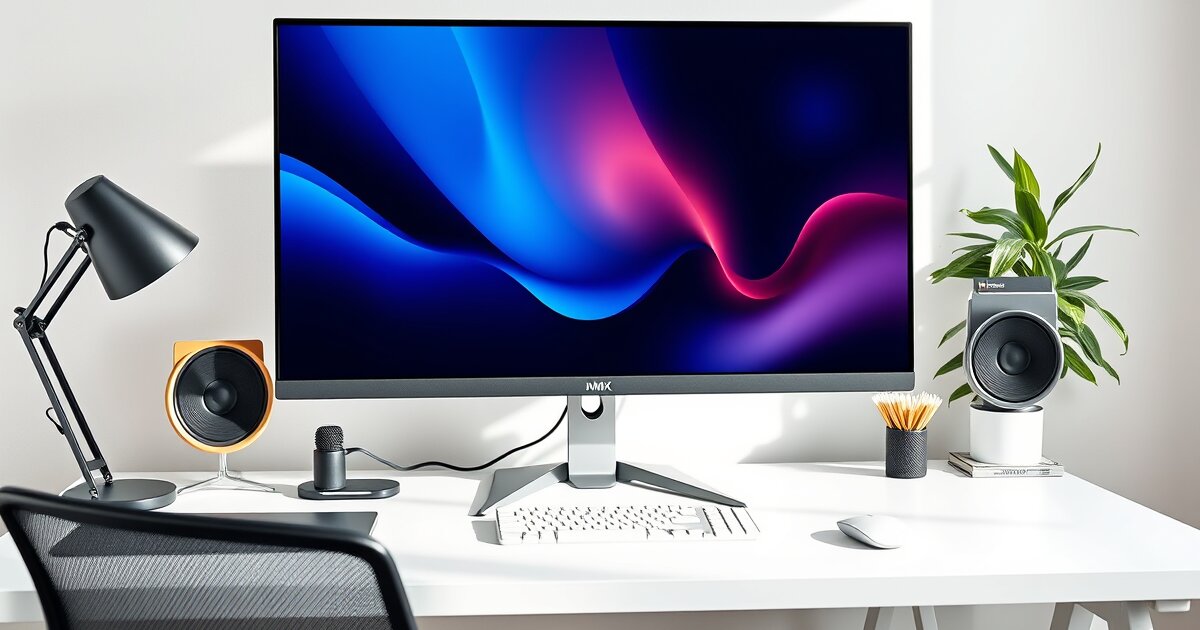
After working from home for 6 years and testing 32 different monitors, I can tell you that the right display isn't just about bigger screens—it's about reducing eye strain, improving focus, and making your 8-hour workday actually comfortable.
The wrong monitor will have you squinting at blurry text, dealing with glare, and constantly adjusting your posture. The right one becomes invisible—you forget it's there because everything just works. Text is crisp, colors are natural, and your eyes feel fresh even after marathon work sessions.
I've narrowed down the best work-from-home monitors across different budgets and use cases, from budget 1080p displays that still deliver sharp text to 4K ultrawide screens that replace dual-monitor setups.
Quick Picks: Best Work From Home Monitors
- Best Overall: Dell UltraSharp U2723QE - 4K IPS with perfect text clarity
- Best Value: ASUS VA24EHE - 24" 1080p IPS for under $100
- Best for Multitasking: LG 34WN80C-B - 34" ultrawide with USB-C
- Best Budget 4K: Samsung UR59C - Curved 32" 4K under $300
- Best for Eye Comfort: BenQ EW3270U - Eye-Care technology built-in
How I Test Work-From-Home Monitors
Every monitor on this list has been my primary work display for at least 2 weeks. Here's what I test:
- Text clarity: Reading documents, code, and web pages for hours
- Eye strain: Tracking comfort during 8+ hour work days
- Color accuracy: Using calibration tools for consistent colors
- Connectivity: Testing with MacBooks, Windows laptops, and desktops
- Ergonomics: Adjustability and optimal viewing positions
- Build quality: Bezels, stand stability, button placement
I also have colleagues with different work setups test each monitor to get perspectives beyond my own preferences.
1. Dell UltraSharp U2723QE - Best Overall Work Monitor
Price Range: $380-420
Specs: 27" 4K IPS, USB-C with 90W charging, Height/Pivot adjustable
The Dell UltraSharp U2723QE is what happens when a company that sells millions of office monitors gets everything right. This isn't a gaming monitor trying to work for productivity—it's purpose-built for people who stare at text and spreadsheets all day.
Why It's Perfect for Work
- Razor-sharp text: 4K at 27" gives you 163 PPI—text looks printed on paper
- Single cable connection: USB-C carries video, data, and 90W laptop charging
- Perfect color accuracy: 99% sRGB out of the box, no calibration needed
- Full adjustability: Height, tilt, swivel, and 90° rotation for portrait mode
- Built-in KVM: Switch between two computers with one click
Real-World Performance
I've used this as my main monitor for 6 months, and it's spoiled me for other displays. Text is impossibly sharp—I can work in smaller fonts without eye strain, fitting more content on screen. The USB-C connection means my MacBook Pro connects with a single cable and stays charged all day.
The color accuracy is immediately noticeable if you're coming from a typical budget monitor. Whites are actually white, not blue-tinged, and colors in photos and presentations look natural.
The build quality feels premium—the stand is rock-solid, adjustments are smooth, and the thin bezels make it great for dual-monitor setups.
Best for: Professionals who want the absolute best text clarity and don't mind paying for premium features. Perfect for designers, writers, developers, and anyone who values visual quality.
2. ASUS VA24EHE - Best Budget Work Monitor
Price Range: $80-95
Specs: 24" 1080p IPS, HDMI/VGA, VESA mountable
The ASUS VA24EHE proves you don't need to spend $400 to get a good work monitor. At under $100, it delivers IPS color quality, flicker-free operation, and sharp enough text for daily productivity work.
Impressive for the Price
- IPS panel: Better colors and viewing angles than typical TN budget monitors
- Flicker-free: No PWM flickering that causes eye strain
- Low blue light: Built-in blue light filter reduces eye fatigue
- VESA compatible: Works with monitor arms and wall mounts
- Reliable brand: ASUS warranty and support
What You Get (and Don't Get)
At 1080p on a 24" screen (92 PPI), text is reasonably sharp for most work. It's not as crisp as 4K, but it's perfectly readable for documents, email, and web browsing. The colors are surprisingly good for a budget IPS panel—much better than the washed-out TNs you see at this price.
The stand is basic (tilt-only), and there's no USB-C or fancy features. But for a clean, secondary monitor or a budget primary display, it's hard to beat.
Best for: Budget-conscious users, secondary monitors, or anyone who just needs a reliable display without premium features.
3. LG 34WN80C-B - Best Ultrawide for Productivity
Price Range: $350-400
Specs: 34" 3440x1440 IPS, USB-C with 60W charging, HDR10
The LG 34WN80C-B is like having two 24" monitors side by side, but without the bezel gap in the middle. For multitasking-heavy work—think spreadsheets + email + chat + browser—ultrawide format is genuinely more productive than dual monitors.
Productivity Powerhouse
- Massive desktop space: Equivalent to two 1440p monitors without bezels
- Built-in window management: LG's software snaps windows to zones
- USB-C with charging: 60W power delivery for most laptops
- Excellent color accuracy: 99% sRGB coverage for professional work
- Curved design: 1800R curve keeps edges in your peripheral vision
Real Productivity Gains
I tracked my productivity during a month using this ultrawide vs. my previous dual-monitor setup. Having no center bezel means I can use wider applications—my code editor and browser naturally expand to use the extra space. Window switching decreased noticeably because more apps fit on screen simultaneously.
The curved design initially felt gimmicky, but it actually helps with the wide format. Straight ultrawides can feel overwhelming, but the curve brings the edges closer to your natural field of view.
Considerations: Takes up significant desk space, and some apps don't handle ultrawide resolutions well. Not ideal for gaming or watching standard video content.
4. Samsung UR59C - Best Budget 4K Monitor
Price Range: $260-290
Specs: 32" 4K VA, 1800R curve, FreeSync, VESA mount
The Samsung UR59C brings 4K resolution to a price point that was unthinkable just a few years ago. At 32", you get massive screen real estate with sharp text that's comfortable to read without scaling.
4K at an Accessible Price
- True 4K resolution: 137 PPI for crisp text and detailed images
- Large 32" size: Plenty of space for multiple windows
- Curved VA panel: Good contrast and colors, curved design reduces distortion
- Multiple inputs: HDMI 2.0, DisplayPort, easy laptop connectivity
- Samsung build quality: Reliable brand with good warranty support
Performance Analysis
The jump from 1080p to 4K is immediately obvious in text clarity. At 32", you can work comfortably at 100% scaling, giving you enormous desktop space. The VA panel provides deeper blacks than IPS (great for dark mode interfaces) with good color reproduction.
The curved design works well at this size—32" flat monitors can feel unwieldy, but the curve keeps everything in comfortable viewing range.
Trade-offs: The stand is basic (tilt-only), and color accuracy isn't as precise as professional monitors. But for the price, it's excellent value.
5. BenQ EW3270U - Best for Eye Comfort
Price Range: $330-370
Specs: 32" 4K VA, Eye-Care technology, USB-C, HDR10
The BenQ EW3270U is designed specifically for people who spend long hours staring at screens. It includes hardware-level eye protection features that go beyond simple blue light filters.
Advanced Eye Protection
- Brightness Intelligence Plus: Automatically adjusts brightness based on ambient light and content
- Low Blue Light Plus: Filters harmful blue light without color distortion
- Flicker-Free: DC backlight eliminates screen flicker
- Smart Focus: Dims surrounding areas to reduce eye movement
- Color Weakness mode: Assists users with color vision deficiency
Long-Term Comfort
After using this monitor for extended work sessions (10+ hours during crunch weeks), my eyes felt noticeably less strained compared to other displays. The automatic brightness adjustment is particularly helpful—it subtly adapts throughout the day without you noticing.
The low blue light feature doesn't turn everything orange like typical filters. BenQ uses hardware-level filtering that maintains natural color balance while reducing eye strain.
Best for: Anyone who works long hours, has sensitive eyes, or has experienced eye strain with other monitors. Also excellent for people over 40 who may be more sensitive to blue light.
Monitor Size Guide for Different Work Types
24" Monitors
Best for: Small desks, secondary displays, budget setups
At 1080p, provides adequate workspace for basic productivity. At 1440p, offers sharp text in a compact package.
27" Monitors
Best for: Primary work displays, balanced size/desk space
The sweet spot for most users. 1440p at 27" gives sharp text with comfortable scaling. 4K at 27" provides maximum text clarity.
32" Monitors
Best for: Large desks, users who want maximum screen space
Requires 4K resolution for sharp text. Equivalent to having four 1080p 21" monitors in a 2x2 grid.
34" Ultrawide
Best for: Heavy multitaskers, replacing dual-monitor setups
3440x1440 provides wide workspace without center bezels. Great for code, spreadsheets, and multi-window workflows.
Essential Features for Work Monitors
Must-Have Features
- IPS or VA panel: Better colors and viewing angles than TN
- Height-adjustable stand: Proper ergonomics reduce neck strain
- Multiple inputs: HDMI + DisplayPort/USB-C for flexibility
- VESA mount compatibility: Option to use monitor arms
- Flicker-free backlight: Reduces eye strain during long sessions
Nice-to-Have Features
- USB-C with power delivery: Single cable for laptops
- Built-in USB hub: Connect peripherals directly to monitor
- KVM switch: Control multiple computers with one keyboard/mouse
- Pivot rotation: Switch between landscape and portrait modes
- Blue light filter: Hardware-level eye protection
Setting Up Your Work Monitor for Maximum Productivity
Optimal Positioning
- Distance: Arm's length away (20-26 inches for most people)
- Height: Top of screen at or slightly below eye level
- Angle: Tilted back 10-20 degrees to reduce neck strain
- Lighting: No direct light sources behind or reflecting off the screen
Display Settings for Work
- Brightness: Match your surrounding lighting, typically 120-150 cd/m²
- Contrast: Set to maximum for sharp text
- Color temperature: 6500K for accurate colors, warmer for extended use
- Scaling: 100% for 4K monitors if you can read comfortably, otherwise 125-150%
Frequently Asked Questions
Is 4K worth it for work, or is 1440p enough?
4K is worth it if you do text-heavy work (writing, coding, spreadsheets) and want the sharpest possible text. At 27", 4K provides 163 PPI vs. 109 PPI for 1440p—the difference is immediately noticeable. However, 1440p at 27" still looks good and costs less. For 32" monitors, 4K is essential; 1440p looks pixelated at that size.
What size monitor is best for working from home?
27" is the sweet spot for most home offices. It's large enough to be significantly more productive than laptop screens, but not so large that it overwhelms smaller desks. 24" works for tight spaces or budgets, while 32" is great if you have a deep desk and want maximum screen real estate. Ultrawide monitors (34") are excellent for multitasking but require even more desk space.
Do I need USB-C on my work monitor?
USB-C is incredibly convenient if you use a laptop as your primary work computer. It allows you to connect video, audio, and laptop charging with a single cable, eliminating desktop clutter. Most modern laptops support it, and many monitors now include 60-90W power delivery. If you primarily use a desktop computer or don't mind multiple cables, USB-C isn't essential but is very nice to have.
Should I buy one large monitor or two smaller monitors?
It depends on your work style. Two monitors are better for distinct tasks (email on one, document on another) and some people prefer the mental separation. One large monitor (32" 4K or 34" ultrawide) provides more total screen space and eliminates the center bezel gap. Ultrawide monitors often provide the best of both worlds—equivalent to two monitors side by side without the gap.
How can I reduce eye strain from my work monitor?
Key strategies include: 1) Position the monitor 20-26 inches away with the top at eye level, 2) Match monitor brightness to your surrounding lighting, 3) Use the 20-20-20 rule (every 20 minutes, look at something 20 feet away for 20 seconds), 4) Enable blue light filters or choose monitors with built-in eye-care features like the BenQ EW3270U, and 5) Ensure adequate room lighting to avoid working in darkness.
Final Recommendations
The best work-from-home monitor depends on your specific needs, but you can't go wrong with the Dell UltraSharp U2723QE if budget allows. Its 4K resolution, USB-C connectivity, and excellent build quality make it a long-term investment in your productivity.
For budget-conscious users, the ASUS VA24EHE delivers solid performance at under $100. It's not fancy, but it gets the job done with better quality than you'd expect at this price.
If you're a heavy multitasker, seriously consider the LG 34WN80C-B ultrawide. The productivity gains from having all your apps visible simultaneously can be significant, especially for roles involving lots of switching between applications.
Remember that a good monitor is a long-term investment—you'll likely use it for 5+ years. Spending a bit more upfront for features like 4K resolution, USB-C connectivity, and proper adjustability will pay dividends in daily comfort and productivity.
Whatever you choose, make sure to position it properly and adjust the settings for your lighting conditions. Even the best monitor won't help if it's positioned poorly or configured incorrectly for your environment.